Design — Overview
Design is where you create the concepts and styles your production is built on. Concepts are the reusable building blocks of your story — characters, props, and locations — and styles carry a consistent aesthetic (look, tone, lighting, mood) across every image and video you generate. Design is also home to moodboards: wide-open canvases for ideating and exploring before anything becomes a formal concept.
Concept creation happens on the design canvas — a node-based graph editor where you connect generators, references, prompts, and concept containers together, then publish the result to your project. If you used an earlier version of Showcraft, the tab-based Design module has been replaced entirely; everything now flows through canvases.
This page covers the Design home screen, the things you'll create there, and the paths for creating them. For the canvas itself — navigation, nodes, ports, and edges — see Design — The Canvas. For the full concept-creation walkthrough, see Design — Creating Concepts.
The Design home screen
After you create a new project — and any time you create a new canvas — you land on the Design home screen, titled Create a new design canvas! This is the launch point for everything in Design.
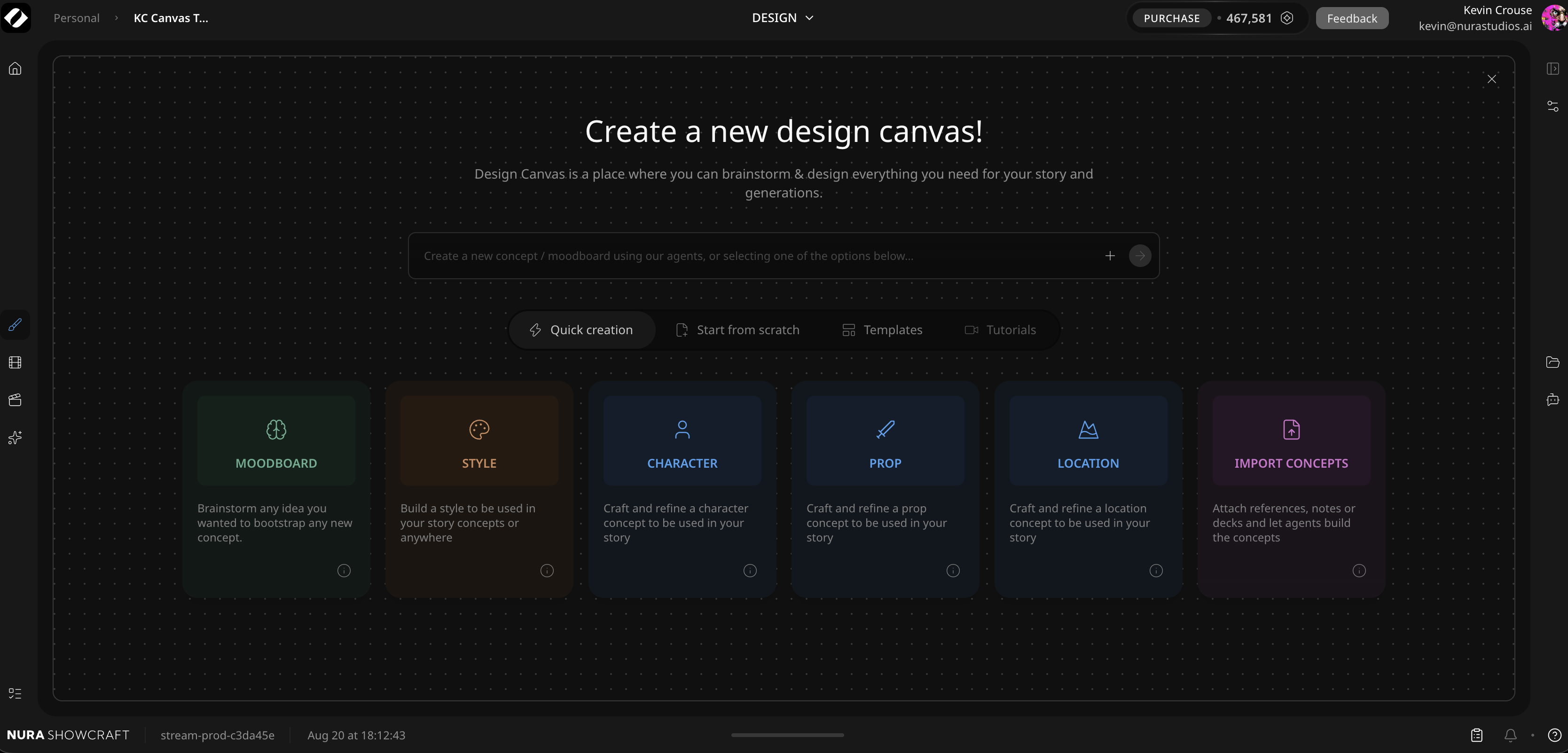
At the top sits an agent prompt field. Describe the concept or moodboard you want and the agents will set up the initial node structure on a canvas for you — a fast way to skip manual setup entirely. The + button on the field lets you upload files from your computer or pull from the asset library to include with your request.
Below the prompt field, four tabs set the creation mode:
- Quick creation — guided setup. Name your concept, give it a starting prompt and model settings, and land on a pre-wired canvas. This is the default tab.
- Start from scratch — an empty canvas, no handholding.
- Templates — a library of pre-built node setups: simple characters, locations, props, character variants, and more arriving over time. Templates come with annotation nodes on the canvas that walk you through exactly what to do — a good way to learn the node patterns.
- Tutorials — video walkthroughs (coming soon).
Under the tabs sit six creation cards:
- Moodboard — brainstorm any idea on a blank canvas that isn't tied to a specific concept.
- Style — build a style to be used in your story, concepts, or anywhere.
- Character — craft and refine a character concept for your story.
- Prop — craft and refine a prop concept for your story.
- Location — craft and refine a location concept for your story.
- Import Concepts — attach references, notes, or decks and let the agents build the concepts for you. See Design — Importing Concepts.
Quick creation
Quick creation is the fastest manual path to a working canvas. Pick a concept type (character, prop, or location), then in the Quick Creation module:
- Give your concept a name and a description prompt.
- Select the image model to use. By default this respects your global project settings, where you define the project's default image model, aspect ratio, and style.
- Pick the aspect ratio and resolution for the concept's initial images, plus any additional settings the selected model exposes (quality, for example).
- Optionally, generate images right here before entering the canvas. Hovering over the Generate Image button previews how many credits the generation will cost with your current settings. This step isn't mandatory — you can just as easily explore images once you're on the canvas.
- Click Create to open your pre-wired canvas.
The canvas you land on comes set up with an image generator node (pre-populated with your prompt) already connected to a concept node of the type you chose. From there, the workflow is the same regardless of how you started — see Design — Creating Concepts.
Concepts, styles, and moodboards
Concepts are your characters, props, and locations. On the canvas, each is represented by a concept node that acts as the container for all of the prompts and images that make up the concept. Published concepts become canonical within Showcraft and are what you reference downstream in Production and everywhere else.
Styles carry an aesthetic across your whole production — look, tone, lighting, mood — and can be applied to any image or video generation. Creating a style is not mandatory, but it's how you maintain a specific look for an IP or an established visual identity. Style creation has not yet moved onto the design canvas (but will be forthcoming this Fall); it works the same as before — see Design — Styles. Showcraft also now ships with a set of Nura house styles available to apply at any time when making an image or video; those are covered in Design — Styles too.
Moodboards are blank canvases for exploration. They aren't tied to any particular concept, so you can build out chains of generators, references, and images freely. When something on a moodboard is ready to become real, drag a character, location, or prop concept node onto the canvas, hook your work up to it, and publish — the moodboard experiment becomes a proper concept.
Autosave vs. publish
The design canvas has a two-layer save model worth understanding early:
The canvas autosaves continuously. Node positions, generated images, connections — any change you make on a canvas is saved automatically as you work. You can leave and come back without losing anything.
Concepts update only when you publish. Your changes don't touch the actual concept in Showcraft's database until you click Publish. Publishing brings up the publishing screen, where you confirm what's being saved; once published, the concept — its settings, selected images, prompts, and components — is canonical and available across the project. If you keep working on the canvas afterward, remember to publish again to push the new state.
Getting around
- The top-left return button takes you from a canvas back to your Design lists — characters, locations, props, styles, and moodboards. Selecting any item in the lists takes you straight to its node on its canvas, ready for more workshopping.
- The + button creates a new canvas and returns you to the Design home screen.
- The DESIGN module dropdown at the top center of the screen jumps you between modules, as everywhere in Showcraft — see Global Navigation.
Where Design hands off
Everything downstream of concept creation works the same as it always has. Published concepts flow into Production for storyboarding and shot generation, into the Sequencer, and everywhere else concepts are referenced. It's only the creation of concepts itself that now lives on the design canvas.
One relocation to be aware of: the Image Editor no longer surfaces within Design. It still exists, but only within the image generation workflows of the Production and Generator modules.